

Author Archives: chris

How to Design a Professional Photo Album

How to Design a Professional Photo Album | Fotoplayer

Designing a professional photo album is more than just placing pretty photos on pages. It is about telling a story, guiding the viewer through a memorable experience, and delivering a product that looks and feels polished from cover to cover. At Fotoplayer, we believe a well designed album reflects your vision as a photographer while staying practical for print and timeless for your audience. In this guide you will find a comprehensive, beginner friendly framework you can apply to any project, whether you are building a wedding album, a family heritage book, or a portfolio showcase.

Why a well designed photo album elevates your work

A thoughtfully designed album can elevate your photography to a finished work of art. It demonstrates your storytelling ability, attention to detail, and commitment to quality. When your album feels cohesive, it communicates professionalism and care to clients, publishers, or personal viewers.

  • A great album helps you stand out in a crowded market.
  • It protects and preserves memories with print quality that lasts.
  • It communicates your brand and style in a tangible way.

As you design, think about how each spread functions as a page in a larger narrative. Your goal is a seamless reading experience that draws the viewer in, one spread at a time.

Plan before you build

Before you start arranging images, take a moment to map out the project. A clear plan will save time and result in a more cohesive album.

Define the story you want to tell

  • What is the overall theme or event the album covers?
  • Which images are essential to that story?
  • Is the album chronological, thematic, or a hybrid narrative?

Identify your audience and purpose

  • Is this a client project, a personal keepsake, or a portfolio piece?
  • What feel do you want: timeless, modern, cinematic, or documentary style?
  • What size and format will best present the story?

Gather assets and constraints

  • Collect your best images and exclude duplicates.
  • Note print constraints such as page count, margins, and bleed.
  • Decide on a budget range for printing and materials.

Cover design and first impression

The cover sets the tone for the entire album. It should be inviting, legible, and aligned with the story inside.

Crafting an eye catching cover

  • Choose a strong image or a minimal, typographic cover that hints at the content.
  • Ensure the cover image has a high resolution and clean crop.
  • Consider a simple, elegant label that reflects your branding.

Cover materials and finishes

  • Matte finishes reduce glare and feel modern, while glossy can enhance color vibrancy.
  • Linen or leather textures add tactile interest and a premium feel.
  • Ensure the cover design remains legible when viewed on a shelf or in a lighting condition typical for your audience.

Title and spine typography

  • Use a readable typeface for the title on the spine, especially for tall books.
  • Limit the number of font families to two or three to maintain consistency.
  • Maintain contrast between text and background for legibility.

Page layouts and sequencing

Strong page layouts guide the eye and reinforce the narrative. A good grid system provides consistency across spreads.

Grid systems and margins

  • Start with a clean grid (for example, a 3 or 2 column layout) and use consistent margins.
  • Leave enough white space to avoid crowding images; white space helps your subjects breathe.
  • Use consistent baseline grids for captions and page numbers.

Visual rhythm and storytelling

  • Alternate between full bleed images and multi image spreads to create rhythm.
  • Use a mix of portrait and landscape photos to fit varying aspect ratios.
  • Create chapter or section breaks with title pages or introductory spreads.

Image sizing and alignment

  • Use a consistent crop strategy to preserve subject relationships across pages.
  • Align key elements along a grid to keep pages feeling cohesive.
  • Pay attention to negative space around main subjects to avoid clutter.

Do and donts for sequencing

  • Do place your strongest images early and late on a spread.
  • Don’t overload a single spread with too many crops or focal points.
  • Do vary focal lengths to maintain interest while preserving a cohesive look.

Typography and color for a professional look

Typography and color are the glue that holds your album together. Used thoughtfully, they support readability and mood without overpowering the photos.

Find the right fonts

  • Choose one primary serif or sans serif font for body text.
  • Use a second font sparingly for headlines or captions.
  • Ensure fonts render well at small sizes for captions and metadata.

Build visual hierarchy

  • Use font weight, size, and contrast to guide readers through the page.
  • Reserve emphasis for titles or key captions that need to stand out.
  • Keep captions legible with a comfortable line height and color contrast.

Color theory for photo albums

  • Develop a restrained color palette that complements your photos rather than competes with them.
  • If you work with color grading, ensure colors are consistent across spreads.
  • Consider a soft neutral background color to let images pop, especially for weddings and family albums.

Typography and color consistency tips

  • Create a small style guide for your project and stick to it.
  • Use your chosen fonts across all pages for coherence.
  • Test color contrast on screen and in print to avoid surprises.

Images and editing for a unified look

Consistency across images matters more than any single adjustment. A unified editing approach helps the album feel intentional.

Image selection criteria

  • Select images that advance the story and maintain emotional variety.
  • Include a mix of candids, portraits, and detail shots if they fit the narrative.
  • Avoid over editing; preserve natural skin tones and true color where appropriate.

Edit with consistency

  • Apply a uniform color grade or set of processing steps to all images.
  • Calibrate your monitor and soft proof to ensure prints match expectations.
  • Watch for common issues like underexposure or clipping on shadows.

Consistency in color across images

  • Build a color workflow that standardizes white balance, contrast, and saturation.
  • Use color profiles (sRGB for web proofs, Adobe RGB or ProPhoto RGB for print) appropriately.
  • If your images come from multiple sources, normalize them during editing.

Technical checks before layout

  • Confirm resolution: aim for at least 300 dpi for print.
  • Check file formats: save final spreads as high quality TIFF or optimized PNG; back up as layered PSD if your workflow requires it.
  • Ensure there are no embedded color profiles that could shift colors in print.

Captions, journaling and storytelling adds

Captions and short journaling blocks provide context and personality. They can anchor the narrative and offer perspective.

When to caption

  • Use captions for key details such as names, dates, and locations.
  • Add short storytelling notes on intro or closing spreads if it strengthens the arc.
  • Consider longer journaling pages for albums with heritage or documentary themes.

Caption craft tips

  • Keep captions concise and informative.
  • Use a consistent voice and tense across captions.
  • Pair captions with images in a way that enhances understanding rather than repeating what’s obvious.

Paper types, printing and finishes

The choice of paper and print finish influences the album’s mood, durability, and cost.

Paper types explained

  • Matte paper offers elegant color reproduction with low glare and a timeless feel.
  • Silk or satin finishes provide a balance between gloss and matte, good for mixed image sets.
  • Thick, heavy weight paper feels premium and can help the album lay flat.
  • Request a proof or a sample page from your printer to verify color and density.
  • Check color consistency across pages, including whites and skin tones.
  • Inspect edge quality, bleed areas, and trim safety zones.

Bleed, trim and safe margins

  • Use bleed settings so images extend to the page edge after trimming.
  • Keep critical content away from the trim area to prevent accidental clipping.
  • Confirm the final page count and layout adjustments necessary to avoid misalignment.

Finishes and special effects

  • Consider spot varnish or foil accents for titles or small details if the budget allows.
  • Embossed or debossed elements add tactile interest to premium albums.
  • A layflat binding can be a game changer for panoramic images spanning two pages.

Proofing and quality control

Proofing ensures the final product matches your vision before you place a big order or send to print.

Digital proofs vs print proofs

  • Digital proofs are fast and useful for verifying layout and text, but may not perfectly reproduce color.
  • Print proofs give a more accurate sense of color and paper feel; reserve them for final confirmation.

Proofing workflow

  • Do a page by page check for layout consistency and typography.
  • Check image brightness, color balance, and potential pixelation.
  • Confirm captions, dates, and credits are correct.

Test spreads and final review

  • Create a few representative spreads to test flow and rhythm.
  • Review the entire album with fresh eyes after a short break.
  • Have a second person review for readability and emotional impact.

Choosing the right print partner is critical for quality, color accuracy, and service.

Choosing a printing partner

  • Look for a vendor with strong color management and reliable proofs.
  • Check review history and customer support responsiveness.
  • Consider production times, shipping options, and warranty if available.

How to request realistic mockups

  • Provide hi res project files and a color managed workflow.
  • Ask for print ready files and a proof that mirrors your final paper stock and finish.
  • Request an online digital proof or a physical sample to validate every detail.

Prep steps for print readiness

  • Ensure all images are properly cropped and aligned with the page grid.
  • Confirm file naming and page order to prevent misprints.
  • Prepare alternate file formats as backups in case the printer requires a different submission.

Branding and personal style integration

Your album should feel like a natural extension of your brand or personal aesthetic.

Brand identity integration

  • Use your logo and brand colors sparingly on the cover or inside opening pages.
  • Maintain a consistent tone in captions and introductions that reflects your voice.
  • Ensure the album feels like a natural product of your studio or personal work.

Consistent color palette

  • Choose a restrained palette that works across different image sets.
  • Apply the same color grade or color handling methods to all photos.
  • Use color accents subtly on page titles or chapter headings to reinforce identity.

Cohesive typography choices

  • Limit to two or three typefaces across the entire album.
  • Use hierarchy to differentiate page types (titles, captions, body text).
  • Ensure legibility on all devices and in print, from a distance.

Quick start checklist for a professional photo album

  1. Define the story, audience, and final format (size, page count, layflat vs standard).
  2. Curate images with a focus on narrative flow and emotional variety.
  3. Create a layout grid and establish margins, bleeds, and safe areas.
  4. Choose a color palette and typography that reflect your branding.
  5. Edit images for consistency in color, exposure, and tone.
  6. Design cover art with clear typography and suitable material considerations.
  7. Add captions strategically and keep journaling concise and purposeful.
  8. Prepare print ready files with proper color profiles, bleed, and trim marks.
  9. Request proofs and do a thorough review before final printing.
  10. Select a printer that matches your quality goals and budget.

Sample workflow you can adapt

  • Step 1: Import all project assets into a dedicated workspace.
  • Step 2: Create a master page template and define your grid.
  • Step 3: Start with a cover concept and a title page.
  • Step 4: Build spreads in a logical sequence, testing rhythm after every three spreads.
  • Step 5: Apply a consistent color grade and a single typographic system.
  • Step 6: Add captions and small narrative blocks in a consistent style.
  • Step 7: Proof both content and technical specs, then prepare print files.
  • Step 8: Order a soft test print or a layflat mock up to confirm your choices.

How Fotoplayer supports your album design journey

Fotoplayer offers a wide range of photography guides and creative techniques to help you refine your craft from image editing to album design. Whether you are just starting or looking to elevate a portfolio, these resources can help you:

  • Nail the fundamentals of image selection and sequencing.
  • Learn practical editing workflows to achieve consistency across a multi image spread.
  • Explore paper types, finishes, and print workflows to fit your budget without sacrificing quality.
  • Master typography and color to create a cohesive visual narrative.
  • Understand vendor considerations and how to communicate effectively with printers.

Common pitfalls to avoid

  • Overcrowding spreads with too many images or too much text.
  • Inconsistent color across images due to uncontrolled editing or color profiles.
  • Poor bleed management leading to unintended white borders.
  • Ignoring the story arc in favor of aesthetic experiments that do not serve the narrative.
  • Skimping on proofs and quality checks in order to save time or money.

Final thoughts

A professional photo album is a tangible extension of your photography. It should feel deliberate, crafted, and personal, yet remain practical and print ready. By planning, choosing a coherent visual language, executing precise layouts, and validating every detail through proofing, you can deliver an album that clients and viewers will treasure for years to come.

If you are looking for more hands on guidance, explore Fotoplayer’s tutorials on image editing, layout templates, and print ready files. Our aim is to empower photographers and enthusiasts to create albums that are not only beautiful but also enduring keepsakes.
Best Photo Editing Software Compared

Best Photo Editing Software Compared

Opening paragraph:
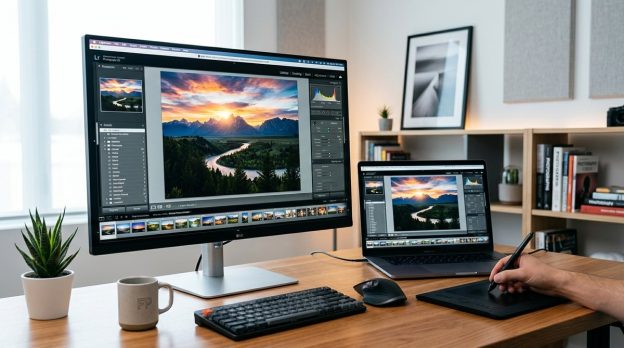
If you love turning ordinary photos into something you want to share right away, you know the power that a great editing tool can unlock. But with so many programs buzzing around the market, choosing the right fit for your workflow can feel like a maze. This guide from Fotoplayer breaks down the best photo editing software in 2026, taking into account your goals whether you are shooting RAW, creating social media ready images, or building a professional catalog. We balance power with approachability so you can find tools that grow with you.

What this guide covers and why it matters

Photos live in your edits. The right software helps you preserve color, control exposure, and apply creative effects without slowing you down. In this article we compare desktop editors, cloud based options and mobile apps, focusing on:
– Core editing capabilities that matter most to photographers
– Library and organization features
– Price, licensing models and value
– Ease of learning and available learning resources
– Platform coverage (Windows, macOS, iOS, Android)
– AI assisted features and future proofing

Understanding these areas helps you pick a suite that fits your style, not just the current trend.

Quick picks by use case

Everyone has a different editing journey. Here are the top recommendations based on typical needs.

  • Best overall for most photographers: Lightroom Classic and its ecosystem offer a balanced mix of power, organization and non destructive editing.
  • Best for beginners and fast results: Lightroom cloud based version or Luminar for a friendly interface and guided edits.
  • Best value one time purchase: Affinity Photo provides a deep toolset without ongoing subscription.
  • Best for RAW processing and precise control: DxO PhotoLab and Capture One Pro excel at color science and detail recovery.
  • Best for Windows users on a budget: GIMP paired with PaintShop Pro as a commercial option combines price and capability.
  • Best mobile editor: Lightroom mobile and Snapseed deliver strong results on the go with cloud syncing.

How we evaluate photo editing software

To keep this guide practical, we focus on criteria that affect real world editing sessions:
– Non destructive editing workflow
– RAW support and color accuracy
– Local adjustments and brush tools
– Layering and masking capabilities
– Organization and cataloging features
– Performance with high resolution files
– Platform availability and cross device syncing
– Price models and upgrade paths
– Training, tutorials and user community

Desktop editors versus mobile apps

  • Desktop editors excel at depth and precision. They typically offer robust RAW processing, powerful masking and professional color management.
  • Mobile editors shine in speed and accessibility. They are ideal for quick retouching, social media ready edits and on the go workflows.
  • The best setups use a mix: desktop for serious editing and mobile for quick sharing. Cloud synced libraries make this seamless.

In depth: major editors reviewed

Adobe Lightroom Classic

Advantages
– Industry standard for many studios and enthusiasts
– Strong RAW processing with powerful color grading tools
– Non destructive edits and a robust set of local adjustments
– Excellent library management, keywording and facial recognition
– Deep integration with Adobe Creative Cloud and plugins

Considerations
– Subscriptions required, which can add up over time
– Interface can feel dense for new users
– Some advanced features live in Photoshop and require switching apps

Who it’s for
– Photographers who need reliable RAW processing, comprehensive cataloging and a workflow that scales with a growing library.

Tips for getting started
– Start with Basic panel for white balance and exposure, then explore HSL for color tuning.
– Use presets carefully to build a consistent look across batches.
– Regularly back up your Lightroom catalog and use smart previews to edit offline.

Adobe Photoshop (CC)

Advantages
– Pixel level editing, advanced compositing, and masks
– Extensive brush and correction tools for retouching
– Great for graphic overlays, textures and creative composites
– Deep ecosystem with plugins and third party brushes

Considerations
– Steeper learning curve if you seek deep pixel editing
– Not primarily a photo manager; needs a separate workflow for organization
– Can be heavy on hardware during complex tasks

Who it’s for
– Photographers who need precision retouching, compositing and final polish, or who frequently create composites.

Tips for getting started
– Learn non destructive methods with adjustment layers and masks
– Use Photoshop in tandem with Lightroom for a balanced workflow
– Try Guided Edits or mock projects to build confidence

Affinity Photo

Advantages
– One time purchase with a comprehensive toolset
– Strong RAW editing and advanced retouching
– Layered editing with masks and adjustment layers
– Excellent for users who want Photoshop level capability without a subscription

Considerations
– Less built in library management than Lightroom
– Fewer automatic cloud based collaboration options
– Smaller ecosystem of training resources compared to Adobe

Who it’s for
– Creatives who want a high end editing suite without ongoing fees and who prefer a one time purchase.

Tips for getting started
– Use non destructive adjustments via adjustment layers
– Explore live filter layers for flexible editing experiments
– Build a small library of custom workflows to speed up edits

DxO PhotoLab

Advantages
– Exceptional RAW processing and auto corrective capabilities
– Superior noise reduction and optical corrections
– Clear, visual and precise local adjustment tools
– Excellent lens profiles and automatic corrections

Considerations
– Interface can feel technical for beginners
– Fewer integrated cloud sync features compared to Lightroom
– Advanced features may require extra modules

Who it’s for
– Photographers who value top tier RAW processing, smart auto corrections and strong lens correction tools.

Tips for getting started
– Start with the automatic corrections and then fine tune locally
– Leverage the UI to isolate color and tonal ranges for precise edits
– Consider pairing with a cataloging tool if you need broader organization

Capture One Pro

Advantages
– Premier color science with excellent skin tone reproduction
– Customizable interface and strong tethered shooting support
– Robust RAW processing and high degree of detail retention
– Professional studio oriented features and batch processing

Considerations
– Higher price point and a steeper learning curve
– Interface customization takes time to master
– Catalog management can be intense for new users

Who it’s for
– Professional studios, fashion and wedding photographers who demand precision color and reliable tethering.

Tips for getting started
– Start with a simple workspace and gradually add tools you use often
– Use the color editor for fine control over color renditions
– Take advantage of the cataloging options to keep large shoots organized

Skylum Luminar

Advantages
– AI powered tools for sky replacement, structure and detail
– Intuitive interface ideal for quick edits and creative looks
– Flexible licensing options including one time purchase
– Good balance between editing power and ease of use

Considerations
– Some AI features may feel overdone if you prefer a natural look
– Layering and masking capabilities are not as deep as Photoshop or Affinity
– Performance can vary with large catalogs

Who it’s for
– Photographers who want creative edits with a friendly interface and faster results.

Tips for getting started
– Use templates to develop consistent looks
– Explore AI tools to speed up complex edits but keep manual tweaks in reserve
– Combine Luminar with a dedicated library tool for best results

Corel PaintShop Pro

Advantages
– Friendly price point and strong editing toolkit
– Good balance of photo editing and design features
– Clear learning path for beginners transitioning from consumer editors

Considerations
– Fewer updates compared to the big players
– Interface can feel traditional and slightly older
– Not as strong for large scale RAW processing as others

Who it’s for
– Windows users who want solid editing without subscription complexity.

Tips for getting started
– Take advantage of guided edits to learn features
– Use the one click optimization tools sparingly to preserve natural results

GIMP (free)

Advantages
– Free and open source with a flexible workflow
– Powerful for a budget minded setup and scriptable via plugins
– Strong community with lots of tutorials

Considerations
– Older UI may feel less polished
– Lacks some modern color management and professional library tools
– Steeper learning curve to reach the same efficiency as commercial products

Who it’s for
– Beginners with budget constraints or hobbyists who want to customize their workflow.

Tips for getting started
– Pair with a lightweight library system if you need organization
– Look for community plugins to extend capabilities
– Practice with non destructive edits using layers and masks

Mobile editing apps worth knowing

  • Adobe Lightroom Mobile: Great for sync across devices; strong editing tools and presets
  • Snapseed: Easy to use with powerful selective edits
  • VSCO: Strong style presets and social sharing
  • PicsArt: Creative tools and overlays

Tips for mobile editors
– Sync with your desktop library to maintain consistency
– Use presets as a starting place and adjust to taste
– Keep file sizes in mind for quick performance

How to choose the right tool for your workflow

  • If you shoot lots of RAW and need robust cataloging, Lightroom Classic or Capture One Pro are solid foundations.
  • If you want advanced retouching and composites, Photoshop remains the gold standard, possibly paired with Lightroom.
  • If you want a modern interface with strong color correction and a one time purchase, Affinity Photo is a compelling option.
  • If you crave AI assisted edits to speed up work and explore creative looks, Luminar is worth a test.
  • If budget is the highest priority, GIMP or PaintShop Pro offer capable editing at a lower price point.
  • For mobile editing, Lightroom mobile and Snapseed cover most on the go needs, with the option to export back to desktop.

Practical tips to maximize your editing toolkit

  • Build a workflow that starts with a non destructive editor, then adds pixel level edits as needed
  • Maintain a consistent color workflow by calibrating your monitor and choosing a reliable color management setup
  • Organize your catalog with clear keywords, ratings and collections to speed up future edits
  • Use presets and profiles to maintain a recognizable style but modify per image to avoid uniform looks
  • Regularly backup your catalog, presets and LUTs to avoid losing your work

A note on learning resources and community support

  • The best editors come with rich learning resources: official tutorials, community forums and third party courses
  • Consider following a weekly editing routine that includes a mix of learning and practicing on real projects
  • Look for local or online communities where you can share before and after images for feedback

Why Fotoplayer users will love this topic

Fotoplayer is about photography guides, editing tips and creative techniques. We love helping you develop your own editing voice while sharing practical steps to improve outcomes. This article is designed to help you move from curiosity to confident choice by comparing tools and showing how they fit into real life workflows.

The bottom line: choosing your best photo editing software

There is no single perfect choice for every photographer. Your gear, your style and your goals drive the decision. The best approach is to start with one main editor that matches your current needs, then add complementary tools as your workflow evolves. For many shooters, a combination of Lightroom Classic for organization and basic edits, paired with Photoshop for advanced retouching, remains a powerful backbone. If you want a fast path to creative looks and a lower price, Luminar or Affinity Photo can be excellent additions or even main editors.

If you want more guidance on building your custom editing stack, or you would like tailored advice based on your camera system, lens lineup and typical shooting scenarios, Fotoplayer has you covered. Browse our photography guides and editing tips to find beginner tutorials, best editing software round ups and album design ideas that suit your style. Your next level of photo editing is just a few thoughtful choices away.

Appendix: quick comparison at a glance
– Lightroom Classic: Best all around for most workflows; strong RAW processing and cataloging.
– Photoshop: Best for pixel editing, composites and selective retouching.
– Affinity Photo: Great one time purchase alternative with deep editing tools.
– DxO PhotoLab: Best for RAW processing and automatic corrections.
– Capture One Pro: Best color science and tethered shooting for pros.
– Luminar: Best for creative AI driven edits and fast results.
– PaintShop Pro: Good value Windows option with a solid feature set.
– GIMP: Free option that can be extended with plugins.
– Mobile options: Lightroom Mobile and Snapseed for on the go editing.

End note
For ongoing tips and tutorials, check Fotoplayer for fresh guides on editing workflows, color management and creative techniques. Whether you are starting out or refining a professional workflow, the right software lineup can transform your photography from good to great.

Photography Tips for Beginners Using Any Camera

Photography Tips for Beginners Using Any Camera | Fotoplayer

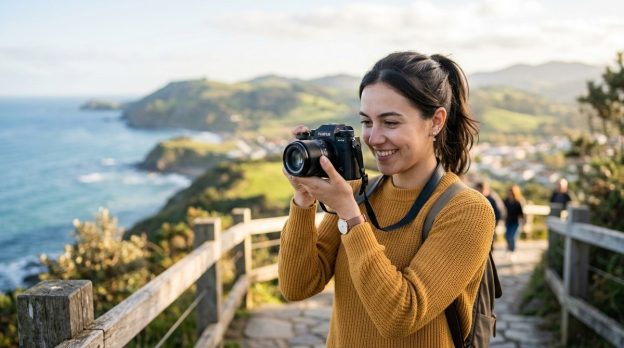
Welcome to Fotoplayer, your friendly guide to turning everyday moments into compelling images. If you are just starting out or you want to improve with the gear you already own, you are in the right place. The best camera in the world cannot save a bad photo if you do not understand light, composition, and a few simple techniques. The good news is that you can become a better photographer using any camera, from a phone to a basic point and shoot or a traditional DSLR. This article walks you through practical, repeatable steps that emphasize fundamentals you can apply today and build on as you grow. Fotoplayer covers photography guides, editing tips, creative techniques, beginner tutorials, best editing software, and album design advice to help you advance.

Getting Started with Any Camera

The first step is acknowledging that your camera is a tool not a magic wand. The real magic comes from learning how to see light, craft a composition, and tell a story with your image. You do not need the latest gear to begin. Most successful photos come from steady practice and thoughtful decisions, not from gear upgrades.

The Core: Exposure Triangle

Understanding exposure is the foundation of good photography. Three elements control exposure:

  • ISO: sensitivity to light. Start with the lowest ISO you can use for the scene to keep noise down.
  • Shutter speed: how long the sensor is exposed to light. Faster speeds freeze motion while slower speeds create motion blur.
  • Aperture: the size of the opening in the lens. A wide aperture (low f number) lets in more light and creates a shallower depth of field, making a subject pop against a blurred background.

Practical tips:
– In bright daylight, use a lower ISO (like 100 or 200) and a smaller aperture (higher f number) to keep detail.
– In dim situations, increase ISO but try to keep it as low as possible to avoid grain.
– If you want to isolate a subject against a background, try a wider aperture.
– If you want everything in focus, use a smaller aperture and a bit longer shutter speed when possible.

Light Is Your Greatest Tool

Light shapes mood and detail. The kind of light you have changes everything.

  • Golden hour light (early morning and late afternoon) is warm and flattering.
  • Midday sun is bright and creates strong shadows; use shade or a diffuser to soften it.
  • Backlight can create silhouettes or magical rim light around a subject.

Practical options:
– Move to find better light rather than forcing the camera to do more work.
– Observe how the light falls on your subject and adjust your position to improve shadows and highlights.
– When possible, shoot near a window or use a portable diffuser to soften harsh sun.

Composition That Works

Strong composition helps tell your story. Keep it simple at first and gradually add nuance as you grow.

  • Rule of thirds: place important elements along imaginary lines or at their intersections.
  • Leading lines: roads, rails, walls guide the viewer into the scene.
  • Framing: use elements in the scene to frame the subject.
  • Foreground interest: add a detail in the foreground to create depth.
  • Negative space: give the subject room to breathe to create a calm image.

Hands on approach:
– Before shooting, glance at the frame and ask what draws your eye first.
– If something seems cluttered, recompose or move to a cleaner angle.

Focus and Clarity

A sharp photo begins with good focus.

  • Use single point autofocus for precise focus on a subject.
  • For portraits, eye focus is often the most important.
  • Consider manual focus for tricky subjects like macro or low contrast scenes.
  • In low light, enable focus assist or magnify the view to confirm focus.

Tip: If your camera has a live view magnification feature, use it to nail focus on important details.

Practical Settings You Can Use Today

Even with a basic camera, these basics help you start strong.

  • Shoot in RAW when possible for maximum flexibility in post processing.
  • Start in aperture priority mode if you want to control depth of field, letting the camera decide shutter speed.
  • Use shutter priority when freezing motion or creating movement blur.
  • Enable ISO Auto with a sensible ceiling, so the camera adapts to light without you babysitting it.
  • Turn on image stabilization if your lens or camera offers it, especially for handheld shooting.
  • Use auto white balance as a starting point and fine tune in post if needed.

The Right Lenses for Beginners

A versatile lens often makes learning easier.

  • A standard zoom around 24 to 70 millimeters covers most everyday scenes from landscapes to portraits.
  • A wider angle is great for environments and architecture.
  • A short telephoto helps isolate portraits without stepping too close.

If you are using a kit lens, make the most of the focal range before investing in new glass. Each lens has a character that can influence your photos, but you can still tell stories with any focal length given patience and practice.

Stabilization and Tripods

Stability matters for sharp images and long exposures.

  • Use a tripod when shooting low light, long exposures, or want a consistent frame across a series of shots.
  • A simple handheld technique can reduce shake: elbows in, stance steady, and breath controlled.
  • When you cannot use a tripod, lean on a solid surface or use image stabilization to help.

Shoot with a Plan Not a Button

A little planning goes a long way.

  • Set a goal for each shoot such as capturing texture, color harmony, or a dynamic movement.
  • Scout the location ahead of time if possible to learn light patterns and angles.
  • Make a rough shot list in your notes to stay focused.

Light, Color and White Balance

White balance affects color tone. Shooting in raw allows you to adjust white balance after the fact without degrading image quality.

  • Auto white balance is convenient but can shift color unexpectedly.
  • Use presets like daylight, cloudy, shade, or tungsten to approximate mood and environment.
  • For accurate color in post, shoot a white balance card if you want precise references.

Basic Post Processing for Beginners

Post processing is a companion to shooting. It helps you realize your creative intent.

  • Import and organize your photos with a simple folder system.
  • Adjust exposure and contrast to reveal detail.
  • Tweak color balance to achieve the mood you want.
  • Apply a light noise reduction if you shot at higher ISO.
  • Sharpen selectively on the subject rather than the entire image.
  • Remove minor distractions but keep the image natural looking.
  • Save edits as a non destructive workflow and export final versions for web and print.

Step by step quick start:
1) Import and rate your best images.
2) Correct exposure if needed and set white balance.
3) Improve contrast and color with a subtle hand.
4) Apply light sharpening on the subject only.
5) Export a web version and a high resolution version for print.

Backups and Archiving

Protect your growing photo library with a simple system.

  • Use at least two storage locations such as an external hard drive and a cloud backup.
  • Create a basic folder structure by year, month and shoot.
  • Regularly back up new images and keep a small offline archive for convenience.
  • Consider versioning for important edits to track changes over time.

The Equipment Budget Mindset

Beginner photography does not require a splurge.

  • Start with what you own and make it work. Practice and review your results to reveal what to improve.
  • Allocate a small budget for essential upgrades such as a better tripod, a fast lens, or a portable light.
  • Avoid over buying gear you do not need. Focus on improving technique first.

Safety, Ethics, and Respect

As a photographer you hold power over subjects and spaces.

  • Seek consent when photographing people, especially children.
  • Respect private properties and restricted areas.
  • Be mindful of sensitive environments and avoid disrupting others.
  • Respect local laws and cultural norms while shooting.

The future of photography is evolving with technology while maintaining the art form at its core.

  • Computational photography that blends hardware and software to create more from the same shot.
  • Improved sensor performance in mid range cameras offering higher dynamic range.
  • More accessible editing tools with guided workflows ideal for beginners.
  • Cloud storage and automatic organization making archives easier to manage.

AI and Editing Tools for Beginners

  • AI assisted retouching can help with skin smoothing and color balance while preserving natural look.
  • Smart suggestions can guide you through composition choices and exposure tweaks.
  • Keywords and captions generation can simplify cataloging and sharing.

What This Means for You

  • You can achieve professional looking results without advanced editing skills.
  • Start with solid fundamentals and use AI tools to accelerate progress, not replace learning.
  • Focus on consistent practice and review to build a personal style.

Editing Workflow for Beginners

A well defined workflow saves time and ensures consistency.

  • Import and sort: filter for your best images using ratings or quick selects.
  • Global adjustments: set exposure, contrast, white balance, and color tone.
  • Local adjustments: use selective edits to brighten faces or enhance skies.
  • Noise reduction and sharpening: apply thoughtfully to maintain natural texture.
  • Print ready and web ready exports: deliver different sizes for the intended medium.
  • Backup after editing: keep original and edited files to preserve options.

Practical sequence:
– Always start with a quick crop to improve composition, then adjust exposure and contrast.
– Use color tools to achieve the mood you want rather than over saturating.
– Save a master copy before applying more advanced edits.

Building a Routine: Practice Strategies

Consistency is the secret to improvement.

  • Set a simple 15 to 30 minute daily practice plan.
  • Alternate between different genres like landscapes, portraits, or street scenes to broaden skills.
  • Use themed prompts to keep your practice fresh and fun.
  • Review your images shortly after shooting to learn quickly what worked and what did not.

A sample 14 day plan:
– Day 1: Light and shadow study in your home or yard.
– Day 2: Portraits with natural light near a window.
– Day 3: Street photography with quick frames and candid moments.
– Day 4: Texture study in nature or urban details.
– Day 5: Color exploration by photographing a local market.
– Day 6: Reflection and water textures.
– Day 7: Edit and reflect on the best three images.
– Repeat with new subjects or locations for the second week.

Creating a Simple Portfolio and Album Design Basics

A clear, cohesive portfolio helps you show your best work and tell your story.

  • Select 12 to 20 favorite images that represent your style.
  • Group images into themes such as color, light, or subject matter.
  • Keep a clean layout with consistent borders and margins.
  • Choose print sizes that balance page design and viewing comfort.
  • When designing albums, think about flow, rhythm, and narrative.

Fotoplayer notes: Our guides include beginner tutorials, editing tips, and album design advice to help you present images with confidence.

Common Mistakes and How to Avoid Them

New photographers often repeat a few typical missteps. Here is a quick list with constructive fixes.

  • Over editing: keep edits subtle and true to the scene.
  • Over reliance on auto settings: learn your camera controls to gain more creative control.
  • Ignoring light: spend time learning how light changes throughout the day.
  • Cluttered backgrounds: reframe to remove distractions or use depth of field to blur the background.
  • Bad framing: step back or crop after shooting to remove unimportant elements.

FAQ

  • Do I need a fancy camera to start learning photography?
    Not at all. Any camera can deliver great photos with solid fundamentals and consistent practice.
  • Should I shoot RAW or JPEG as a beginner?
    Shoot RAW if you can, it gives you more flexibility in post processing without sacrificing quality.
  • How do I know when a photo is done?
    If it communicates your intended message and feels complete when you look at it, it is done.

Fotoplayer emphasizes practical, beginner friendly guidance that aligns with our mission of helping new photographers learn through guides, editing tips and creative techniques. Remember that photography is a journey you can enjoy with any camera you own. The key is ongoing practice, thoughtful experimentation, and a willingness to learn from each frame you capture. Use this article as a starting point and return to it as you grow. With time, patience, and the right habits, you will find your own voice behind the lens.