Opening paragraph:
If you love turning ordinary photos into something you want to share right away, you know the power that a great editing tool can unlock. But with so many programs buzzing around the market, choosing the right fit for your workflow can feel like a maze. This guide from Fotoplayer breaks down the best photo editing software in 2026, taking into account your goals whether you are shooting RAW, creating social media ready images, or building a professional catalog. We balance power with approachability so you can find tools that grow with you.
What this guide covers and why it matters
Photos live in your edits. The right software helps you preserve color, control exposure, and apply creative effects without slowing you down. In this article we compare desktop editors, cloud based options and mobile apps, focusing on:
– Core editing capabilities that matter most to photographers
– Library and organization features
– Price, licensing models and value
– Ease of learning and available learning resources
– Platform coverage (Windows, macOS, iOS, Android)
– AI assisted features and future proofing
Understanding these areas helps you pick a suite that fits your style, not just the current trend.
Quick picks by use case
Everyone has a different editing journey. Here are the top recommendations based on typical needs.
- Best overall for most photographers: Lightroom Classic and its ecosystem offer a balanced mix of power, organization and non destructive editing.
- Best for beginners and fast results: Lightroom cloud based version or Luminar for a friendly interface and guided edits.
- Best value one time purchase: Affinity Photo provides a deep toolset without ongoing subscription.
- Best for RAW processing and precise control: DxO PhotoLab and Capture One Pro excel at color science and detail recovery.
- Best for Windows users on a budget: GIMP paired with PaintShop Pro as a commercial option combines price and capability.
- Best mobile editor: Lightroom mobile and Snapseed deliver strong results on the go with cloud syncing.
How we evaluate photo editing software
To keep this guide practical, we focus on criteria that affect real world editing sessions:
– Non destructive editing workflow
– RAW support and color accuracy
– Local adjustments and brush tools
– Layering and masking capabilities
– Organization and cataloging features
– Performance with high resolution files
– Platform availability and cross device syncing
– Price models and upgrade paths
– Training, tutorials and user community
Desktop editors versus mobile apps
- Desktop editors excel at depth and precision. They typically offer robust RAW processing, powerful masking and professional color management.
- Mobile editors shine in speed and accessibility. They are ideal for quick retouching, social media ready edits and on the go workflows.
- The best setups use a mix: desktop for serious editing and mobile for quick sharing. Cloud synced libraries make this seamless.
In depth: major editors reviewed
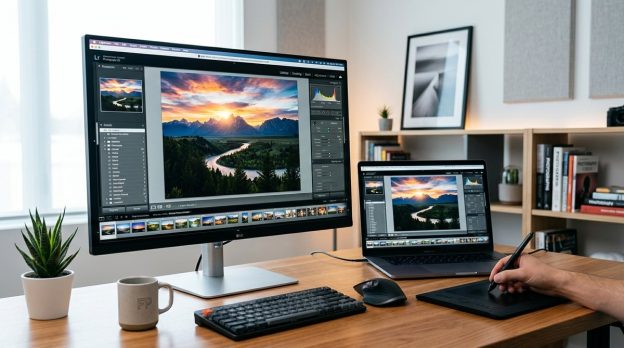
Adobe Lightroom Classic
Advantages
– Industry standard for many studios and enthusiasts
– Strong RAW processing with powerful color grading tools
– Non destructive edits and a robust set of local adjustments
– Excellent library management, keywording and facial recognition
– Deep integration with Adobe Creative Cloud and plugins
Considerations
– Subscriptions required, which can add up over time
– Interface can feel dense for new users
– Some advanced features live in Photoshop and require switching apps
Who it’s for
– Photographers who need reliable RAW processing, comprehensive cataloging and a workflow that scales with a growing library.
Tips for getting started
– Start with Basic panel for white balance and exposure, then explore HSL for color tuning.
– Use presets carefully to build a consistent look across batches.
– Regularly back up your Lightroom catalog and use smart previews to edit offline.
Adobe Photoshop (CC)
Advantages
– Pixel level editing, advanced compositing, and masks
– Extensive brush and correction tools for retouching
– Great for graphic overlays, textures and creative composites
– Deep ecosystem with plugins and third party brushes
Considerations
– Steeper learning curve if you seek deep pixel editing
– Not primarily a photo manager; needs a separate workflow for organization
– Can be heavy on hardware during complex tasks
Who it’s for
– Photographers who need precision retouching, compositing and final polish, or who frequently create composites.
Tips for getting started
– Learn non destructive methods with adjustment layers and masks
– Use Photoshop in tandem with Lightroom for a balanced workflow
– Try Guided Edits or mock projects to build confidence
Affinity Photo
Advantages
– One time purchase with a comprehensive toolset
– Strong RAW editing and advanced retouching
– Layered editing with masks and adjustment layers
– Excellent for users who want Photoshop level capability without a subscription
Considerations
– Less built in library management than Lightroom
– Fewer automatic cloud based collaboration options
– Smaller ecosystem of training resources compared to Adobe
Who it’s for
– Creatives who want a high end editing suite without ongoing fees and who prefer a one time purchase.
Tips for getting started
– Use non destructive adjustments via adjustment layers
– Explore live filter layers for flexible editing experiments
– Build a small library of custom workflows to speed up edits
DxO PhotoLab
Advantages
– Exceptional RAW processing and auto corrective capabilities
– Superior noise reduction and optical corrections
– Clear, visual and precise local adjustment tools
– Excellent lens profiles and automatic corrections
Considerations
– Interface can feel technical for beginners
– Fewer integrated cloud sync features compared to Lightroom
– Advanced features may require extra modules
Who it’s for
– Photographers who value top tier RAW processing, smart auto corrections and strong lens correction tools.
Tips for getting started
– Start with the automatic corrections and then fine tune locally
– Leverage the UI to isolate color and tonal ranges for precise edits
– Consider pairing with a cataloging tool if you need broader organization
Capture One Pro
Advantages
– Premier color science with excellent skin tone reproduction
– Customizable interface and strong tethered shooting support
– Robust RAW processing and high degree of detail retention
– Professional studio oriented features and batch processing
Considerations
– Higher price point and a steeper learning curve
– Interface customization takes time to master
– Catalog management can be intense for new users
Who it’s for
– Professional studios, fashion and wedding photographers who demand precision color and reliable tethering.
Tips for getting started
– Start with a simple workspace and gradually add tools you use often
– Use the color editor for fine control over color renditions
– Take advantage of the cataloging options to keep large shoots organized
Skylum Luminar
Advantages
– AI powered tools for sky replacement, structure and detail
– Intuitive interface ideal for quick edits and creative looks
– Flexible licensing options including one time purchase
– Good balance between editing power and ease of use
Considerations
– Some AI features may feel overdone if you prefer a natural look
– Layering and masking capabilities are not as deep as Photoshop or Affinity
– Performance can vary with large catalogs
Who it’s for
– Photographers who want creative edits with a friendly interface and faster results.
Tips for getting started
– Use templates to develop consistent looks
– Explore AI tools to speed up complex edits but keep manual tweaks in reserve
– Combine Luminar with a dedicated library tool for best results
Corel PaintShop Pro
Advantages
– Friendly price point and strong editing toolkit
– Good balance of photo editing and design features
– Clear learning path for beginners transitioning from consumer editors
Considerations
– Fewer updates compared to the big players
– Interface can feel traditional and slightly older
– Not as strong for large scale RAW processing as others
Who it’s for
– Windows users who want solid editing without subscription complexity.
Tips for getting started
– Take advantage of guided edits to learn features
– Use the one click optimization tools sparingly to preserve natural results
GIMP (free)
Advantages
– Free and open source with a flexible workflow
– Powerful for a budget minded setup and scriptable via plugins
– Strong community with lots of tutorials
Considerations
– Older UI may feel less polished
– Lacks some modern color management and professional library tools
– Steeper learning curve to reach the same efficiency as commercial products
Who it’s for
– Beginners with budget constraints or hobbyists who want to customize their workflow.
Tips for getting started
– Pair with a lightweight library system if you need organization
– Look for community plugins to extend capabilities
– Practice with non destructive edits using layers and masks
Mobile editing apps worth knowing
- Adobe Lightroom Mobile: Great for sync across devices; strong editing tools and presets
- Snapseed: Easy to use with powerful selective edits
- VSCO: Strong style presets and social sharing
- PicsArt: Creative tools and overlays
Tips for mobile editors
– Sync with your desktop library to maintain consistency
– Use presets as a starting place and adjust to taste
– Keep file sizes in mind for quick performance
How to choose the right tool for your workflow
- If you shoot lots of RAW and need robust cataloging, Lightroom Classic or Capture One Pro are solid foundations.
- If you want advanced retouching and composites, Photoshop remains the gold standard, possibly paired with Lightroom.
- If you want a modern interface with strong color correction and a one time purchase, Affinity Photo is a compelling option.
- If you crave AI assisted edits to speed up work and explore creative looks, Luminar is worth a test.
- If budget is the highest priority, GIMP or PaintShop Pro offer capable editing at a lower price point.
- For mobile editing, Lightroom mobile and Snapseed cover most on the go needs, with the option to export back to desktop.
Practical tips to maximize your editing toolkit
- Build a workflow that starts with a non destructive editor, then adds pixel level edits as needed
- Maintain a consistent color workflow by calibrating your monitor and choosing a reliable color management setup
- Organize your catalog with clear keywords, ratings and collections to speed up future edits
- Use presets and profiles to maintain a recognizable style but modify per image to avoid uniform looks
- Regularly backup your catalog, presets and LUTs to avoid losing your work
A note on learning resources and community support
- The best editors come with rich learning resources: official tutorials, community forums and third party courses
- Consider following a weekly editing routine that includes a mix of learning and practicing on real projects
- Look for local or online communities where you can share before and after images for feedback
Why Fotoplayer users will love this topic
Fotoplayer is about photography guides, editing tips and creative techniques. We love helping you develop your own editing voice while sharing practical steps to improve outcomes. This article is designed to help you move from curiosity to confident choice by comparing tools and showing how they fit into real life workflows.
The bottom line: choosing your best photo editing software
There is no single perfect choice for every photographer. Your gear, your style and your goals drive the decision. The best approach is to start with one main editor that matches your current needs, then add complementary tools as your workflow evolves. For many shooters, a combination of Lightroom Classic for organization and basic edits, paired with Photoshop for advanced retouching, remains a powerful backbone. If you want a fast path to creative looks and a lower price, Luminar or Affinity Photo can be excellent additions or even main editors.
If you want more guidance on building your custom editing stack, or you would like tailored advice based on your camera system, lens lineup and typical shooting scenarios, Fotoplayer has you covered. Browse our photography guides and editing tips to find beginner tutorials, best editing software round ups and album design ideas that suit your style. Your next level of photo editing is just a few thoughtful choices away.
Appendix: quick comparison at a glance
– Lightroom Classic: Best all around for most workflows; strong RAW processing and cataloging.
– Photoshop: Best for pixel editing, composites and selective retouching.
– Affinity Photo: Great one time purchase alternative with deep editing tools.
– DxO PhotoLab: Best for RAW processing and automatic corrections.
– Capture One Pro: Best color science and tethered shooting for pros.
– Luminar: Best for creative AI driven edits and fast results.
– PaintShop Pro: Good value Windows option with a solid feature set.
– GIMP: Free option that can be extended with plugins.
– Mobile options: Lightroom Mobile and Snapseed for on the go editing.
End note
For ongoing tips and tutorials, check Fotoplayer for fresh guides on editing workflows, color management and creative techniques. Whether you are starting out or refining a professional workflow, the right software lineup can transform your photography from good to great.